# Confluent HTTP Sink
The easiest way to ingest data from Confluent Cloud based kafka pipelines is using their HTTP Sink.
---
## Prerequisites
To set up this integration you'll need to first:
1) Set up an ingest using the `Array of JSON Objects` schema.
2) Create an API Key to use with this integration with `Write` permissions. We'd recommend creating a dedicated Org-Wide API Key.
3) Follow the instructions [here](https://docs.confluent.io/cloud/current/connectors/cc-http-sink.html){target="_blank"} to install the `HTTP Sink` connector on Confluent Cloud
!!!info
The guide and examples below assume you're using Confluent Cloud. See the docs [here](https://docs.confluent.io/kafka-connectors/http/current/overview.html){target="_blank"} for local installations.
!!!
---
## Setting up the connector
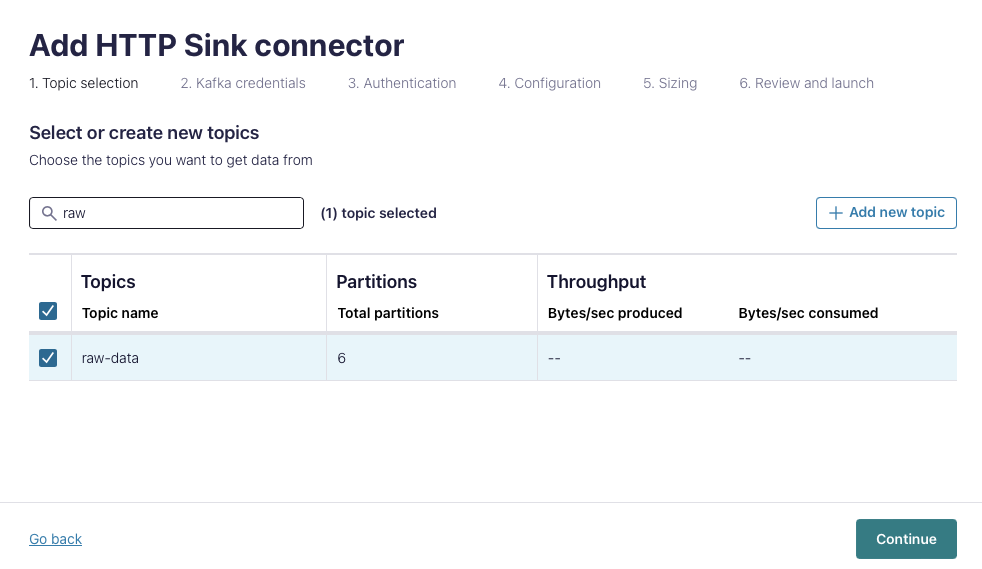
#### 1 - Topic Selection
:::mw-floated-next
First, create a new `HTTP Sink` and select the source topic(s).
:::
:::clear-both
:::
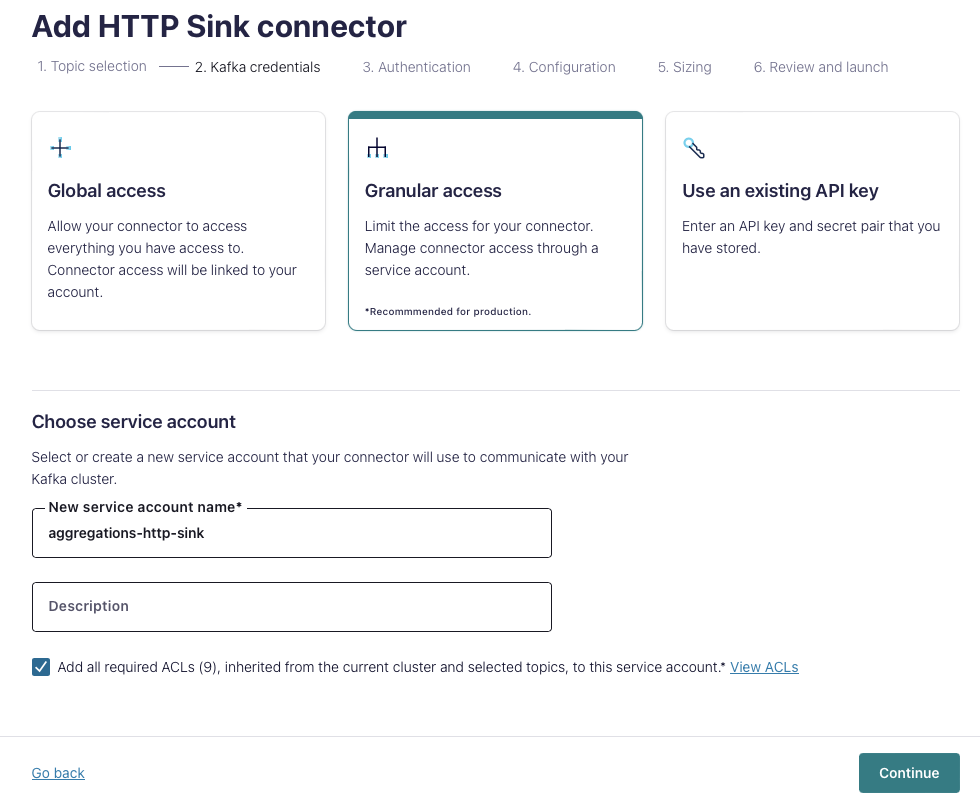
#### 2 - Kafka Credentials
:::mw-floated-next
Choose an appropriate authentication method. These credentials need access to the topic, but will not be used by Aggregations.io.
:::
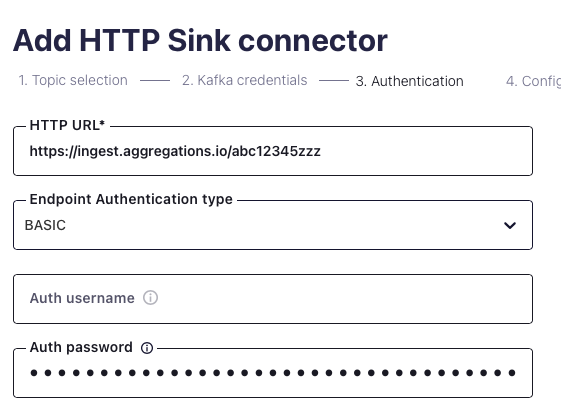
#### 3 - Authentication
:::mw-floated-next
Set the following options:
- `HTTP URL` should be your `POST URL`, something like `https://ingest.aggregations.io/[ID]` (find it [here](https://app.aggregations.io/organization{target="_blank"}))
- Choose `BASIC` for the `Endpoint Authentication Type`
- The `Auth username` should be blank.
- The `Auth password` should be your API key.
:::
:::clear-both
:::
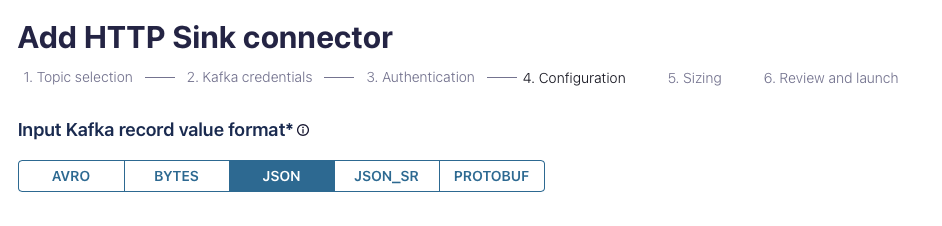
#### 4 - Configuration
:::mw-floated-next
Choose the relevant Input record value format for your data.
Click `Show advanced configuration` to reveal all the options you'll need.
Important settings:
- `Request Body Format` should be set to `json`
- `Batch max size` should be set ~ 250. Depending on the average size of your payload, you may want to increase or decrease this to ensure your payloads do not exceed [1MB](/ingest/posting-events#limits){target="_blank"}
- `Batch json as array` should be `true`
- Retry related settings can be adjusted to your preference for robustness and resiliency.
:::
:::clear-both
:::
#### 5 - Sizing
Select the number of tasks that makes sense for your throughput and setup.
#### 6 - Launch
Launch the connector. Confluent Cloud will by default create an error & DLQ topic for validating everything works as expected.
---
## Troubleshooting
#### Error Codes
See the [Ingest Docs](/ingest/posting-events#troubleshooting) for common errors ingesting events.
#### Events don't seem to be batching?
From the [Sink Docs](https://docs.confluent.io/kafka-connectors/http/current/overview.html#limitations){target="_blank"}:
> The HTTP Sink connector does not batch requests for messages containing Kafka header values that are different.
**Confirm your Kafka records have the same key.**