# Events Explorer
The Events Explorer allows you to search through your events and examine their properties.
## Event List
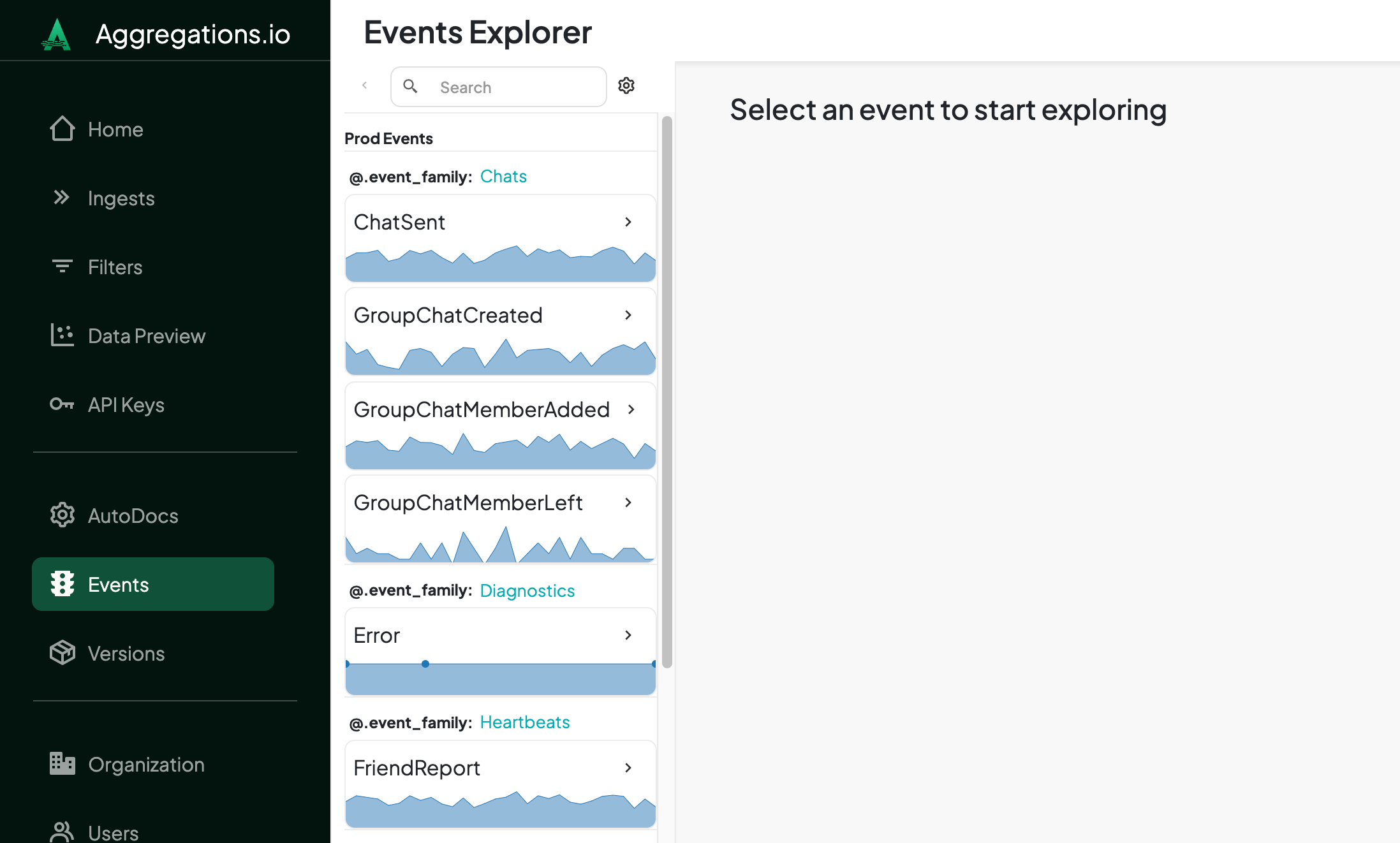
Your events are displayed in a collapsible panel. Events are grouped by config and then levels of descriptors.
In the example below, the Config name is ==Prod Events== and the descriptors are `@.event_family` and `@.event_naem`.
Each event includes a chart tracking the number of ingested events per day for the most recent 90 days of data for that event.
:::spacer-2
:::
### Searching
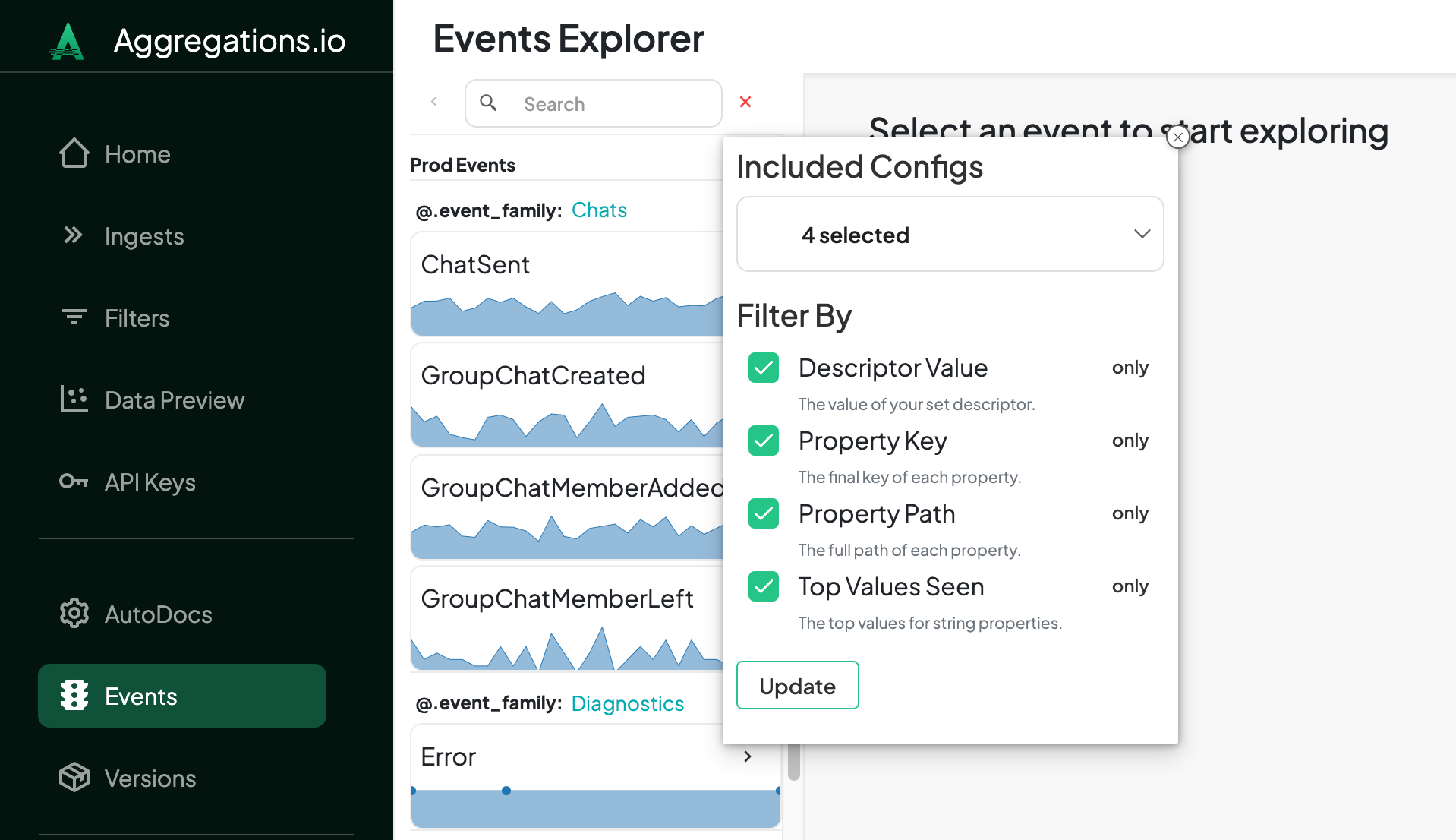
By default, search will look at all elements of your events and their properties. If you want, you can refine your search by clicking the :gear: icon next to the search bar.
If your organization is enabled for multiple ingests and you've created multiple AutoDocs configs - you can choose which to include in your search.
All searches are case insensitive and will function as substring matches.
||| Properties
{.compact}
Option | Description | Example Value
--- | --- | ---
Descriptor Value | The value of your chosen descriptors. | `appOpen`, `appClose`
Property Key | The final key for each property | `eventName`, `platform`, `osVersion`, `code`, `name`
Property Path | The path elements for each nested property | `device`, `geo`, `country`
Top Values Seen | The top values for **string** properties | `ios`, `android`, `US`, `United States`
||| Example payload:
``` json
[
{
"eventName": "appOpen",
"device": {
"platform": "ios",
"osVersion": "16.0"
},
"geo": {
"country": {
"code": "US",
"name": "United States"
}
}
},
{
"eventName": "appClose",
"device": {
"platform": "android",
"osVersion": "13.0"
},
"geo": {
"country": {
"code": "US",
"name": "United States"
}
}
}
...
]
```
|||
:::spacer-2
:::
## Event Detail
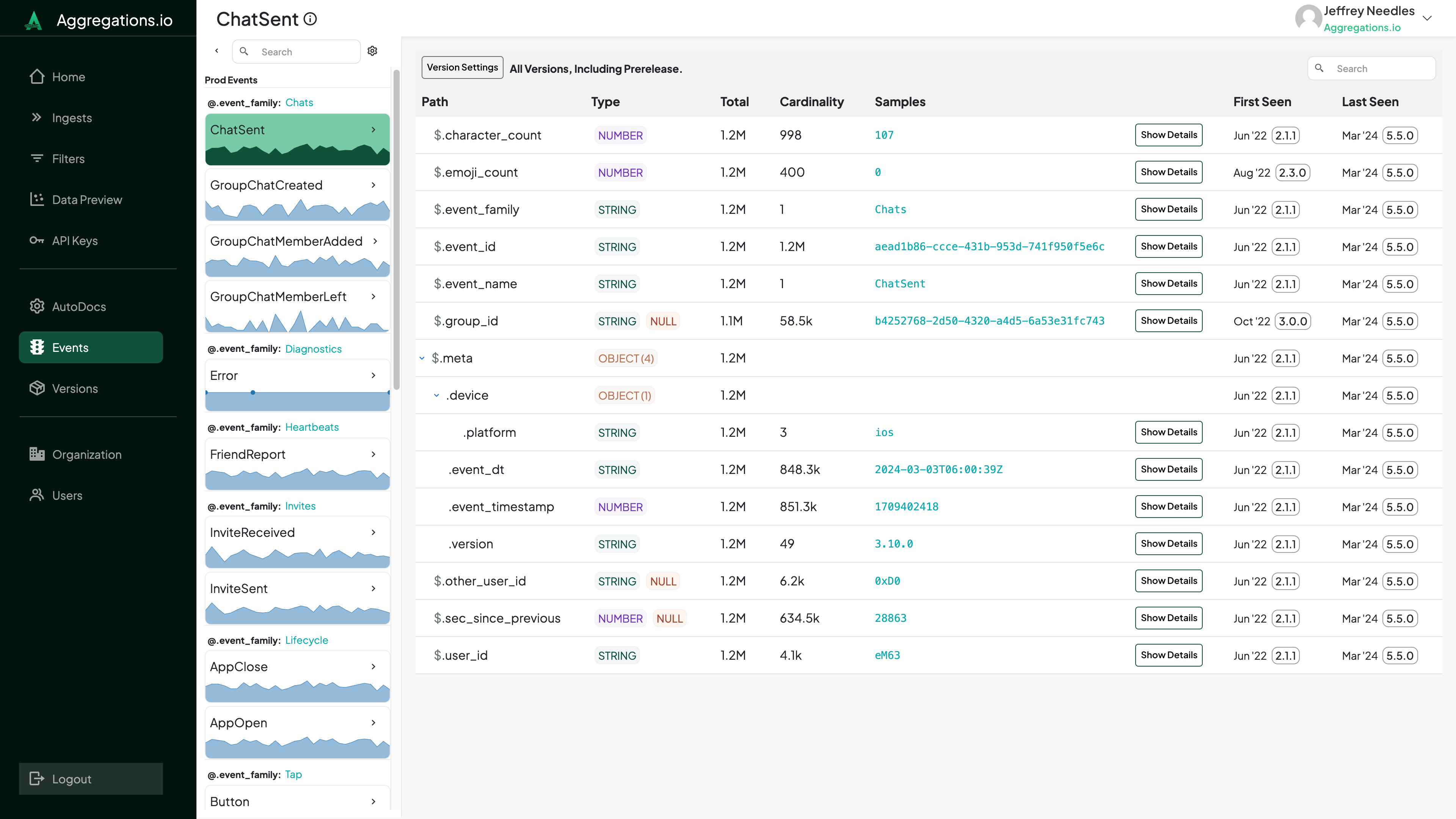
When you choose an event from the list, the right side of the screen will populate with the details for that particular event.
### Version Settings
By default, properties from all non-prerelease versions of the event will be included.
You can click the `Version Settings` button to open a popover giving you more control over the properties displayed.
You can choose between:
{.compact}
Type | Description
--- | ---
All Versions | View properties that have appeared in all versions.
Recent Versions | View properties that have appeared in ==N== recent versions.
Specific Versions | View properties from a specified list of versions.
### Properties
:::spacer-2
:::
**Your properties will display in alphabetical order, following the nested structure as they appear in your events, allowing you to expand or collapse as needed.**
#### Columns
Column | Definition | Notes
--- | --- | ---
Path | The path of the property. | - Properties at the top level will have a `$.` prefix, nested properties will simply have a `.` prefix, but if you hover over any property name, the full path will be revealed.
- When searching, only the outer final is searched and nested structure will no longer be visible.
Type | The type(s) of the property | See [Types](#types) section below.
Total | The total number of times this property has been observed. | For arrays of objects, properties are counted for each instance of the object, so the total may exceed the total number of events.
Cardinality | The approximate cardinality of values observed for this property. | Cardinality is not tracked for arrays or object types. When a property has multiple primitive types, the cardinality is a sum of the individual cardinalities.
Samples | A peek at the statistics/ top sampled value gathered for this property | See the [Property Samples](#property-samples) section below.
First Seen | The first time & version in which this property was observed. |
Last Seen | The most recent time & version in which this property was observed. |
#### Types
AutoDocs tracks each property by its type and path, so if you send an event with `{"field": "abc"}` {.language-json} and `{"field": 123}` {.language-json}, the `field` property is tracked twice. When reviewing in the Events Explorer, these are reconciled and combined, and you'll see the relevant fields combined in the table.
If you're curious about the inner workings of type consolidation, see below.
==- Consolidating Types
Type consolidation follows these rules:
- Primitive types (String, Number, Boolean) can be consolidated
- Arrays of primitive types can be consolidated
- Objects types are never combined with primitive or array types
- Arrays of objects are never combined with arrays of primitives, primitive or objects
- Nulls will first apply to primitive types (if they exist) then objects.
If you send the following payloads:
``` json
[
{
"p1": 123,
"p2": "hi",
"p3": ["a","b"],
"p4": null
},
{
"p1": true,
"p2": null,
"p3": [123, 456],
"p4": {
"i1": false
}
},
{
"p1": [true, true],
"p2": 0,
"p3": [],
"p4": [
{
"i1": 123
}
]
}
]
```
We can break it down like so:
{.compact}
Property | Event 1 Type | Event 2 Type | Event 3 Type | Consolidation
-- | -- | -- | --
`p1` | NUMBER | BOOLEAN | BOOLEAN | NUMBERBOOLEAN
BOOLEAN
`p2` | STRING | NULL | NUMBER | STRINGNUMBER NULL
`p3` | STRING | NUMBER | EMPTY | STRINGNUMBEREMPTY
`p4` | NULL | OBJECT | OBJECT | OBJECTNULL
OBJECT
##### What about `i1` ?
Because `p4` is both an OBJECT as well as an OBJECT, the nested `i1` property will not be consolidated across the varying parents.
==-
##### MIXED Arrays
If there is an event with an array property whose elements are of multiple types, such as `{"field": ["a", "b", 1, 2] }` {.language-json}, you'll see a `MIXED[]` type. Array length samples are still maintained. However, if your array mixes primitives and object types, the sub-objects are not sampled for nested properties.
##### Arrays of Arrays
Arrays of arrays are sampled up to 2 levels of nesting. For the following payload, the resulting properties will include `arr` with a sample length of 2 and a special `INNER ARRAY` field, with a sample length of 3.
``` json
{
"arr": [
[1,2,3],
[4,5,6]
]
}
```
:::spacer-2
:::
### Property Samples {#property-samples}
The **Samples** column will show:
- The `Median Array Length` for ARRAY columns
- The most frequently seen value for NUMBER or STRING columns
- The % true/false for BOOLEAN columns
- Nothing for OBJECT or multi-type primitive columns.
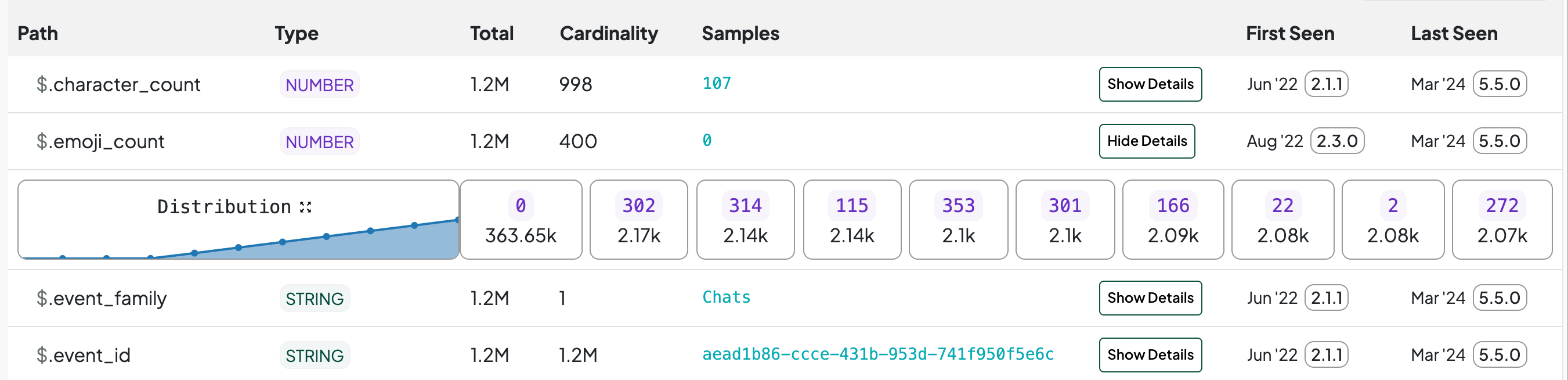
When you click the `Show Details` button, you will be presented with a panel of the 10 most frequent values observed, along with the number of payloads on which they were observed.
When you view the details of a NUMBER or ARRAY property, you'll also see a distribution of the values observed. This chart tracks the 10th, 20th, 30th... percentiles.
Some properties do not return individual sample counts. This includes properties with more than 1,000 samples whose cardinality is within 5% of the sample count, or more than 10,000 samples whose cardinality is within 8% of the sample count. This usually only applies to properties that change on almost every event, like IDs, timestamps, etc.
:::spacer-2
:::
##### Multi-Type Samples
When viewing the details of a property that has been consolidated across multiple types, the default view will include the top 10 sampled values across all the types, interwoven. You can switch between the tabs to view samples for individual types, as well as extra detail about the property with regard to that specific type.
:::spacer-2
:::